School dates in a PDF?
Give them a place in Google Calendar.
A school notice can mix closure days, evening events and end-of-term dates. Here is a complete example of turning one into a calendar file, checking the details and importing it on a computer.
See the four dates reach Google Calendar.
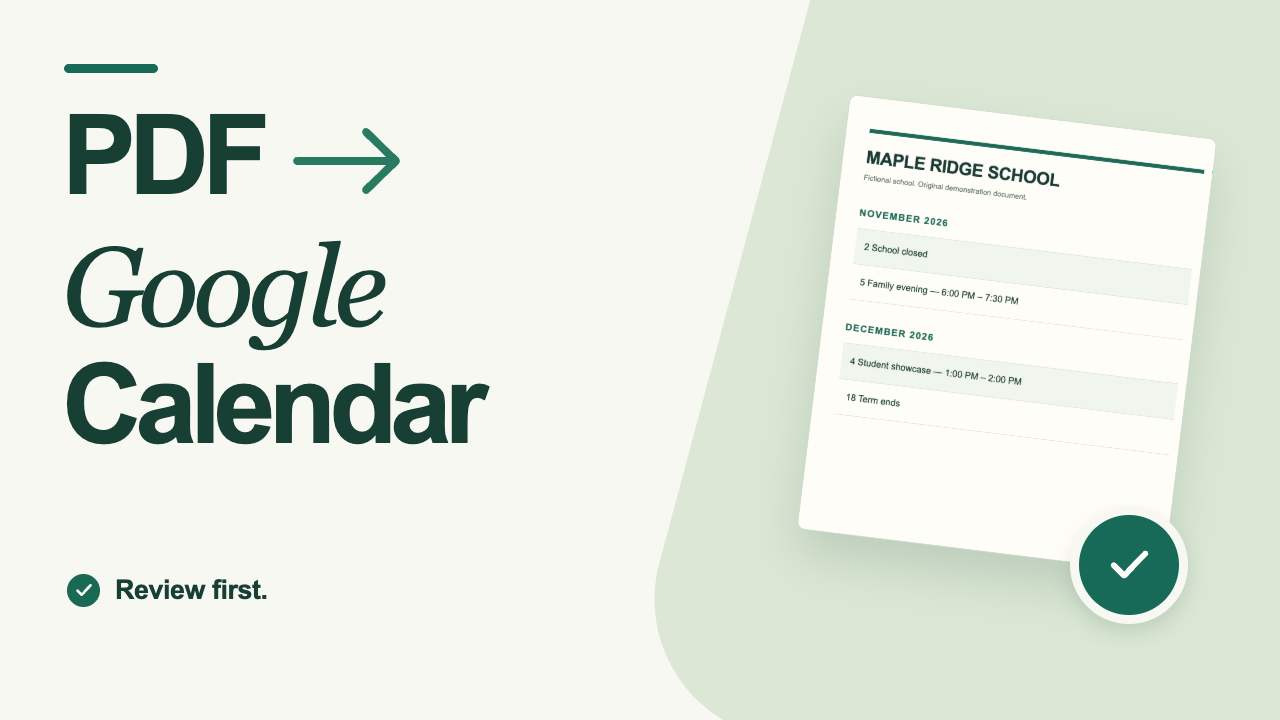
Follow this same fictional notice from upload and review to a real four-event import. The video has English captions and generic synthetic narration.
 2:53Watch the school-PDF walkthroughOpens YouTube in a new tab ↗
The video opens only when you follow a link. This page does not load a YouTube player or contact YouTube automatically.
One notice. Four dates to check.
We wrote this fictional Maple Ridge School notice and uploaded its PDF to our live converter. Its embedded text produced the four events below; we checked each one and downloaded the ICS without changing the fields. This was a maker demonstration using the PDF-text path, rather than AI extraction or a customer result. Other layouts can need corrections.
The example uses America/New_York, selected during extraction. Use your school’s time zone for your own document. The PDF itself does not specify a time zone.
| Event | Date, 2026 | Time in New York |
|---|---|---|
| School closed | November 2 | All day |
| Family evening | November 5 | 6:00–7:30 PM |
| Student showcase | December 4 | 1:00–2:00 PM |
| Term ends | December 18 | All day |
Try the sample ICS in a separate test calendar: these are invented events, not dates for your child’s school. The downloaded file is a reference result; it does not upload or convert your own document.
Check the dates before you import.
- Open your PDF in the converter. The free beta accepts one PDF or image, up to 3 PDF pages, 5 MB and 30 events. Choosing a file opens a local preview. Agreeing to cloud processing and starting extraction sends its contents to Cloudflare; general layouts may use Workers AI.
- Set the school’s time zone and find the events. Keep the source visible. If a notice does not state the year, end time or which class an event applies to, check with the school instead of guessing.
- Review every selected event. Compare titles, dates, start and end times, all-day status and time zone. Remove events for other classes. “Term ends” is not a whole holiday period: this sample records that one day.
- Confirm, then download the ICS. Only selected, confirmed events are included. Download before closing or refreshing the page; the editor does not save your work for later.
Put the reviewed file into Google Calendar.
Use Google Calendar in a computer’s browser for this import. A separate calendar named “School dates test” makes the sample easy to keep apart from your real plans. Google’s create-a-calendar instructions explain how.
- Open Google Calendar, then Settings → Import & export.
- Choose the downloaded .ics file and select the destination calendar. Check the destination before importing: Google normally defaults to your primary calendar.
- Click Import. Find each imported date and compare it with the source and the table above. Timed events may display in your viewing time zone; all-day events should remain on their intended date.
This is a one-time import. A later edit to the school PDF does not update these events. Check for changes before importing a replacement, and check for duplicates before importing the same dates again. See Google’s current import instructions.
A few things that can go wrong
- I only have my phone.
- You can read this guide and review a document on mobile. Complete the Google ICS import on a computer; the converter does not connect to your Google account.
- An event appears at the wrong time.
- Compare the source’s time zone with the time zone used in the converter and the calendar’s display settings. Correct the reviewed event before generating a replacement.
- The PDF contains more than 30 dates.
- This beta cannot extract a whole long calendar in one request. Use a shorter relevant document, an official school calendar, or another workflow that supports its size.
- The converter missed an event.
- Add or correct it in the editor and review it alongside the original. A successful file download cannot establish that every date in the notice was captured.
Keep the original in sight.
Review the details, then take your calendar file with you.